 how-to
Ideal File Format for Professional Mastering
Table of Contents
- Why File Format Matters for Professional Mastering
- Uncompressed Audio: WAV and AIFF as the Gold Standard
- Sample Rate and Bit Depth for Mastering
- How to Export a Mix for Mastering
- Headroom for Mastering: Why It Matters
- Audio File Formats for Music Distribution
- What Not to Send: Avoiding Compressed Formats
- Preparing Your Mix: Next Steps
- Frequently Asked Questions
Last Updated: October 18, 2026
Why File Format Matters for Professional Mastering
The file format you send to a mastering engineer directly impacts the final sound, file format mastering is about preserving every detail of your mix, not just compatibility.
A mastering engineer needs the highest-quality source material.
At LB-Mastering Studios, we work with artists who understand that mastering starts before the engineer ever touches the faders. The file you send determines what's possible in the mastering room.
Uncompressed Audio: WAV and AIFF as the Gold Standard
WAV and AIFF files are the industry standard for mastering. These uncompressed formats preserve every bit of your mix exactly as exported, no data thrown away, no compression artifacts hiding problems.
WAV (Waveform Audio File Format) is the most common choice. It's universal across all DAWs, mastering software, and distribution platforms.
Here's why uncompressed matters:
- No data loss. Every sample from your mix stays intact.
- Transparent editing. The mastering engineer sees exactly what you mixed.
- No conversion artifacts. Compressed formats introduce subtle distortions that compound through processing.
Avoid compressed formats like MP3, AAC, or FLAC for the premaster. They discard audio information to reduce file size, and once that data is gone, no mastering engineer can recover it.
Sample Rate and Bit Depth for Mastering
Sample rate and bit depth define your premaster's resolution. Getting them right is less about chasing big numbers and more about avoiding unnecessary conversion steps between your session and the mastering engineer's workstation.
Sample Rate: Match the Session, Don't Upsample
Sample rate is how many times per second the audio is measured. The common rates are 44.1 kHz, 48 kHz, 88.2 kHz, 96 kHz, 176.4 kHz, and 192 kHz.
When higher rates are genuinely useful:
- Acoustic and classical recording where microphones capture extended high-frequency content and the session was tracked at 88.2 kHz or 96 kHz.
- Film and sync work where the deliverable may be conformed to picture at 48 kHz or 96 kHz later.
- Archival and restoration where you want to preserve the highest resolution source for future re-release.
For typical songs headed to streaming or CD, 44.1 kHz or 48 kHz is sufficient.
One caution: if your session runs at 96 kHz but your plugins or outboard gear were printed at 44.1 kHz, exporting at 96 kHz won't restore missing bandwidth.
Bit Depth: 24-Bit Is the Premaster Standard
Bit depth measures how much information is stored per sample and sets the available dynamic range. Common depths are 16-bit, 24-bit, and 32-bit floating point.
- 16-bit: The CD standard. About 96 dB of theoretical dynamic range. Fine as a final delivery format, but limited as a working source.
- 24-bit: The professional premaster standard. About 144 dB of theoretical dynamic range. Gives the mastering engineer headroom for EQ, compression, and limiting without exposing quantization noise.
- 32-bit float: The highest resolution and effectively lossless for practical purposes. Ideal if your DAW works natively in 32-bit float and your export preserves it.
Export at 24-bit if your session is 24-bit. If your DAW runs in 32-bit float, exporting 32-bit float is acceptable and even preferable, as long as the mastering engineer's software reads it. Confirm the engineer's preferred depth if unsure.
Dither: A Simple Decision Guide
Dither is low-level noise added when reducing bit depth, preventing the harsh, grainy distortion (quantization error) that occurs when a 24-bit signal is truncated to 16-bit. The confusion is usually about when to apply it.
Use this rule:
- Sending a premaster to mastering: Dither off. You are not reducing bit depth, so there is nothing to dither. Leave the conversion to the engineer.
- Exporting a final 16-bit CD master from a 24-bit source: Dither on, applied once at the final reduction. Most mastering software and DAW export dialogs include a dither option for exactly this step.
- Exporting a 24-bit or 32-bit float file: Dither off. No bit-depth reduction is happening.
- Multiple conversions in a chain: Dither only at the final reduction to the target depth. Dithering at every intermediate step adds noise for no benefit.
A common pattern is to let the mastering engineer handle all dithering, since they know the final delivery format and can apply the correct noise-shaping curve for CD, streaming, or vinyl.
How to Export a Mix for Mastering
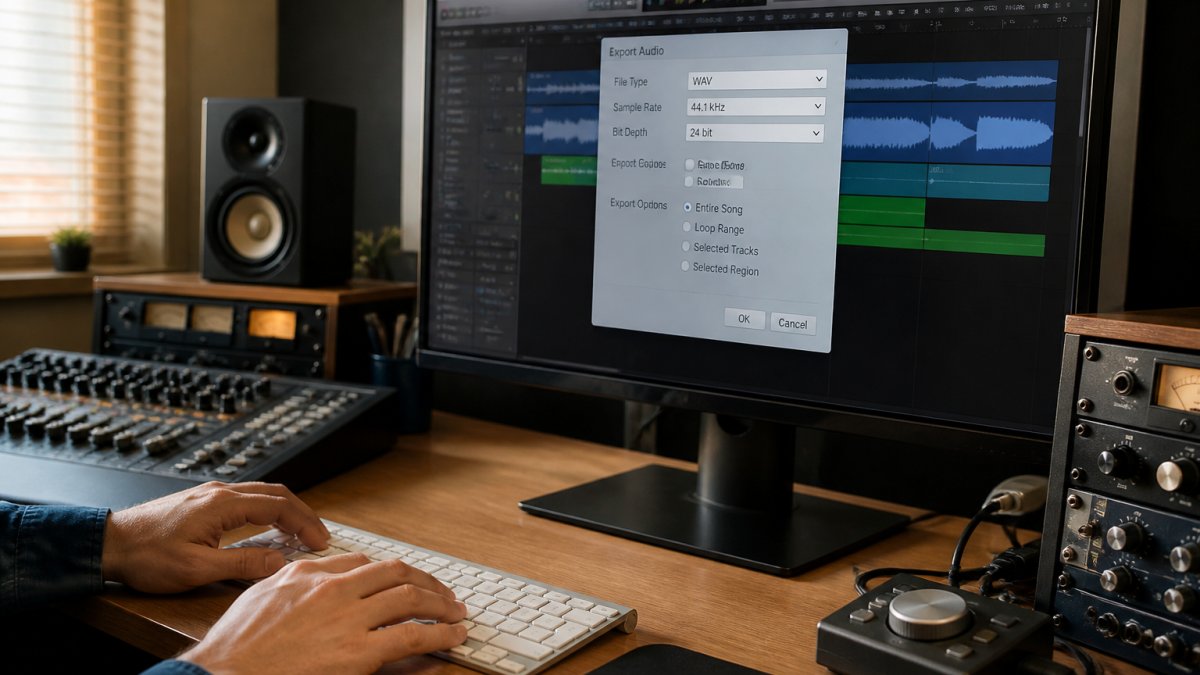
A clean export is a repeatable process. The goal is a single stereo WAV file that matches your session's resolution, has no unintended processing, and is named so the mastering engineer can identify it instantly.
Export Settings Checklist
Before you touch the export dialog, confirm these settings:
File Format: WAV (uncompressed, PCM)
Sample Rate: Match your session (usually 44.1 kHz or 48 kHz)
Bit Depth: 24-bit (or 32-bit float if your DAW supports it natively)
Dither: Off (the mastering engineer will handle final bit-depth reduction)
Normalization: Off (do not normalize before sending)
Sample-Rate Conversion: Off or set to "none" (do not let the DAW resample on export)
Metadata: Include song title and artist name in the file's metadata fields
Step-by-Step Export Workflow
- Set your master fader and check peaks. Aim for -6 dB to -3 dB. If the loudest peak is above -3 dB, lower the master fader rather than adding a limiter.
- Bypass master-bus processing you don't want printed. Most engineers prefer the mix without a brickwall limiter.
- Open the export dialog and set format, sample rate, and bit depth to match the session.
- Disable normalization and sample-rate conversion, the two settings most often left on by accident.
- Set the export range to the full song, including a short tail of silence so reverb and delay tails aren't cut off.
- Export to a new, clearly named folder rather than your project folder.
- Verify the exported file by importing it into a fresh session and checking sample rate, bit depth, peak level, and clean playback.
DAW-Specific Export Paths
Pro Tools: File > Export > Audio File. Format: WAV. Sample Rate: match session. Bit Depth: 24-bit. Do not enable Normalize.
Logic Pro: File > Export > Audio File. Format: WAV. Resolution: 24-bit. Sample Rate: match session. Leave Normalize off.
Ableton Live: File > Export Audio. Audio Format: WAV. Bit Depth: 24-bit. Sample Rate: match session. Leave Normalize off.
Studio One: File > Export Mixdown. Format: WAV. Bit Depth: 24-bit. Sample Rate: match session. Leave Normalize off.
File Naming and Versioning
A clear filename prevents the wrong file from being mastered. Use a consistent pattern like ArtistName_SongTitle_Premaster_v01_44k24b.wav, including artist, song title, "premaster," version number, and sample rate/bit depth. Label alternate mixes clearly, e.g. ArtistName_SongTitle_Instrumental_Premaster_v01.wav. Avoid spaces and special characters, and keep the project file and exported premaster separate so you can re-export if needed.
Headroom for Mastering: Why It Matters
Headroom is the space between your mix's loudest peak and the maximum level the system can handle, measured in decibels (dB).
Why does headroom matter?
- Prevents clipping. Without headroom, processing can cause digital distortion.
- Allows dynamic processing. Compression, EQ, and limiting need space to breathe.
- Protects against inter-sample peaks. Some processing creates peaks between samples that can exceed your mix's peak level.
Check your mix's peak level before exporting. If it's above -3 dB, turn down the master fader a few dB; aim for -6 dB to -3 dB. Don't confuse headroom with loudness, a quiet mix with good headroom beats a loud, clipped one.
Audio File Formats for Music Distribution
Premaster Files vs. Final Release Formats
Here's a critical distinction: the file you send to mastering differs from what your audience hears. The premaster is the high-resolution, unprocessed WAV you export from your DAW, the source material. The mastered file comes back processed, optimized, and often in multiple formats.
After mastering, you'll receive:
- Stereo master (WAV): The main mastered mix, usually 24-bit or 16-bit depending on delivery format
- Streaming masters (MP3, AAC, FLAC): Compressed versions for Spotify, Apple Music, and other platforms
- CD master (16-bit WAV): For physical CD production
- Vinyl master: Specially processed for vinyl pressing with specific EQ and dynamics
- Stem masters (optional): Individual tracks (drums, vocals, bass) mastered separately
The mastering engineer creates these formats from a single stereo master, you don't need to export multiple versions yourself. For your initial submission, send only the stereo premaster as a WAV file.
What Not to Send: Avoiding Compressed Formats
Never send compressed audio files to a mastering engineer, these formats lose information that cannot be recovered.
MP3: Designed for small file sizes, not quality. Mastering processing amplifies its artifacts.
AAC: Similar to MP3; used by Apple and streaming services, but unsuitable as mastering source material.
FLAC: Lossless compression, but still requires decompression, an unnecessary step. Send WAV instead.
OGG Vorbis / Opus: Lossy or compressed codecs, not appropriate for mastering input.
M4A / WMA: Usually compressed wrappers. Avoid.
Preparing Your Mix: Next Steps
You now understand what file format mastering requires and why. Here's what to do:
- Check your mix's peak level. Aim for -6 dB to -3 dB at the loudest point.
- Export as WAV. Match your session's sample rate (usually 44.1 kHz) and use 24-bit depth.
- Turn off normalization and dither. The mastering engineer handles these.
- Name your file clearly. Include artist name and song title.
- Send the premaster file. Don't compress or convert it.
A clean, uncompressed WAV with proper headroom sets the stage for world-class results.
At LB-Mastering Studios, we've worked with hundreds of artists preparing their mixes for mastering. Whether you're working on a Single Song Mastering project, preparing Stem Mastering, or mastering an entire Album Mastering project, we handle your premaster file to create a polished master optimized for streaming, CD, vinyl, or whatever format your music needs. We also offer Vinyl Mastering for artists pressing to wax, and if your mix needs professional attention before mastering, our Mixing services can help get you there.
If you're uncertain about your export settings or want professional guidance before mastering, we offer a free sample master so you can hear exactly what professional mastering adds to your mix. Book a Session and let's get your music ready for the world.
Frequently Asked Questions
What file format should I send for professional mastering?
Send an uncompressed audio file in WAV or AIFF format. These lossless formats preserve every detail of your mix without any data loss, which is essential for a mastering engineer to work with the highest resolution audio. Avoid MP3, AAC, or other compressed formats, as they permanently discard audio information that cannot be recovered during mastering.
What sample rate and bit depth should I use for mastering?
Use 44.1 kHz sample rate and 24-bit depth as your baseline. This combination captures full audio fidelity for streaming platforms and CD distribution. If you recorded at 48 kHz or higher, match that rate in your export. 24-bit depth gives your mastering engineer more information to work with than 16-bit, especially when applying processing and adjustments.
How much headroom should I leave on my mix for mastering?
Aim for at least 3-6 dB of headroom, with your peak levels hitting around -6 dB on your master fader. This gives your mastering engineer room to add compression, EQ, and limiting without clipping or distortion. Headroom prevents the mix from sounding squashed before mastering even begins, and it ensures your mastering engineer has the dynamic range needed to enhance your track.
Can I send an MP3 or compressed file for professional mastering?
No. Compressed formats like MP3, AAC, and ALAC use lossy compression, which permanently removes audio data to reduce file size. Once this information is gone, no mastering engineer can recover it. Professional mastering requires a lossless, uncompressed file like WAV or AIFF to preserve the full quality of your original mix and deliver the best possible final master.